- Procore's ERP integration stages records for an accounting approver in both directions.
- Imports carry the ERP's Origin ID; that is what marks a record synced.
- Masters (vendors, jobs, codes) flow ERP → Procore; commitments and invoices flow back.
- Tie out committed cost per job monthly; unexplained differences are failed syncs.
How it works: a staging area with an approver
Procore's ERP Integrations tool is a company-level tool that acts as a staging area. Financial records from either side wait there until a user with accounting-approver permission accepts them:
- Import (ERP → Procore). The integration stages a record from the ERP with the ERP's ID attached (Procore calls it the Origin ID). When the approver accepts it, Procore creates the real record carrying that Origin ID — which is what marks it as synced.
- Export (Procore → ERP). A project user sends a record, such as a commitment, from its project tool to the ERP Integrations tool. The approver accepts it, the integration creates it in the ERP, and then reports back to Procore so the record is marked as synced. A rejected record goes back to the project tool for editing.
The approval step is the point: money only reaches the books after someone in accounting has looked at it, and nothing enters Procore's financial tools without the ERP's ID.
What syncs, and which way
| Record | Usual direction | Why that way |
|---|---|---|
| Vendors | ERP → Procore | Vendor setup (tax IDs, insurance, payment details) belongs in the books |
| Jobs and sub jobs | ERP → Procore | The job number is created once, in the ERP |
| Cost codes and cost types | ERP → Procore | One code structure, owned by accounting |
| Budgets | ERP → Procore | The estimate's budget is loaded once, then tracked in both |
| Commitments (subcontracts, POs) | Procore → ERP | Written and approved on the project, recorded in the books |
| Commitment change orders | Procore → ERP | Same path as the commitment they change |
| Subcontractor invoices | Procore → ERP | Reviewed against the commitment in Procore, paid from the ERP |
| Payments and job cost | ERP → Procore | Only the books know what was paid and posted |
Which of these a given integration supports depends on the ERP and the connector; the table is the pattern Procore's framework is built around, not a promise for every pairing.
Connector options
An integration built on this framework needs a service running outside Procore that talks to both systems — Procore notifies it through webhooks when something is sent for export. In practice that comes from one of three places:
- Procore's own integrations for the ERPs it supports directly — check Procore's marketplace for your accounting system.
- Partner integrations from system integrators who build on the same ERP framework, often for ERPs Procore does not cover itself.
- Your own build against Procore's REST API and ERP endpoints — realistic only with developers to maintain it.
Whichever you use, ask which records it syncs, in which direction, how often, and what happens to a record the ERP rejects.
Setup decisions that keep it in sync
- Make job numbers identical. The Procore project number should be the ERP job number exactly — reports, integrations and people all join on it.
- Import the cost code structure; never build it twice. Procore's standard cost codes and line item types should mirror the ERP's cost codes and categories, so commitment lines land on the budget lines they buy out.
- Sync vendors from the ERP only. Vendors created in Procore by hand won't carry an Origin ID and won't export cleanly.
- Name the accounting approvers and agree how fast they clear the staging area. A week-old queue means the ERP's committed cost is a week behind.
- Decide what happens to history. Commitments written before the integration existed may need importing with their Origin IDs, or they stay invisible to the ERP side.
Checking it: the monthly tie-out
Once live, compare the two systems per job each month:
An explained difference is usually something waiting for approval. An unexplained one is a failed or skipped sync, and the job's committed cost and forecast are wrong in one of the two systems until it's found. Constructelligence reads both sides — Procore's commitments and Sage job cost — and shows them side by side per job, which makes this check a lookup rather than a spreadsheet.
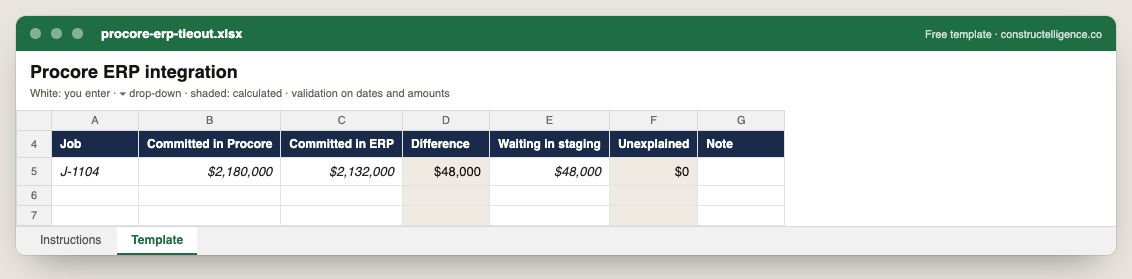
Committed cost per job in Procore and in the ERP, the difference, what is waiting in staging and what is unexplained.
7 columns: 5 you fill in and 2 calculated by formula and filled down 200 rows, so nothing is worked out by hand. In the Excel version, 3 columns reject entries of the wrong type (a date column only takes dates, an amount column only numbers), the header row stays frozen with filters on it, and the workbook opens on an Instructions sheet that lists every column below.
Every column, and how it is captured
| Column | Type | What goes in it |
|---|---|---|
| Job | Text | Job number exactly as in your accounting system (e.g. J-1104), so rows join to job cost. |
| Committed in Procore | Amount ($) | Enter the amount in dollars. |
| Committed in ERP | Amount ($) | Enter the amount in dollars. |
| Difference | Calculated | Calculated: [Committed in Procore] − [Committed in ERP] |
| Waiting in staging | Amount ($) | Enter the amount in dollars. |
| Unexplained | Calculated | Calculated: [Difference] − [Waiting in staging] |
| Note | Text | Free text. |
See it on real-looking numbers
Constructelligence is a construction intelligence platform: it reads your ERP, project and field systems read-only and does this arithmetic every week, for every job. The demo runs it on a sample eight-job portfolio.
Try the demoJoin the private betaFrequently asked questions
How does Procore integrate with accounting software?
Through its ERP Integrations tool, a staging area where financial records wait for an accounting approver. Records from the ERP are imported with the ERP's Origin ID; records sent from Procore project tools, such as commitments, are exported to the ERP once approved.
What is an Origin ID in Procore?
The ID of the matching record in the external ERP, stored on the Procore record. Its presence marks a Procore record as synced and lets reports and integrations join Procore and ERP data without matching on names.
Which data syncs from the ERP to Procore?
Typically vendors, jobs and sub jobs, cost codes and cost types, budgets, and payments or job cost. Commitments, commitment change orders and subcontractor invoices usually flow the other way, from Procore to the ERP.
Why does Procore need an accounting approver?
So money only reaches the books after accounting has reviewed it. Exports wait in the ERP Integrations tool until an approver accepts or rejects them; rejected records return to the project tool for editing.
How do I check that Procore and my ERP agree?
Compare committed cost per job in each system monthly. A difference is either a record waiting for approval or a failed sync; anything that isn't waiting in the staging area needs investigating.
Related guides
More in Data & integrations
- Autodesk Build cost management: budgets, contracts and the change order chain
- Construction data migration: move job cost history without losing a dollar
- Setting up a construction reporting database in SQL Server