- Report from a copy of the ERP in SQL, never the live system.
- One read-only login per tool; connect with ApplicationIntent=ReadOnly.
- Put views in front of copied tables so reports survive changes to the copy.
- Check freshness, orphans, text amounts, padded keys and row counts after every load.
The shape of a reporting setup
Four pieces, each with one job:
- The ERP — where accounting happens. Nothing reads it but the copy job.
- The copy job — moves the ERP's tables into SQL on a schedule (nightly, hourly, or near-real-time).
- The reporting database — SQL Server or Azure SQL, one database per company, holding the copied tables plus any views you add.
- Read-only logins — one per tool (the BI tool, the dashboard, an analyst), each able to read and nothing else.
Reporting from a copy keeps heavy queries away from the system people are posting in, lets you add indexes and views the ERP would not allow, and gives every tool the same numbers at the same refresh time.
Getting the ERP data into SQL
How the copy is made depends on where the ERP keeps its data:
| ERP | Where the data lives | Common copy route |
|---|---|---|
| Sage 300 CRE | Actian Zen (formerly Pervasive) files on the server | A scheduled replication over the Timberline ODBC driver into SQL Server |
| QuickBooks Desktop | The company file | A sync tool that writes the company file's lists and transactions to SQL |
| Cloud ERPs (Vista, Intacct, Acumatica…) | The vendor's cloud | The vendor's API or data export, loaded on a schedule |
Whatever the route, decide three things up front: how often (hourly is enough for most cost reporting; payroll-heavy views may want the day's close), full or incremental (full reloads are simpler and self-healing; incremental is faster on large ledgers but needs a reliable changed-date), and what happens on failure (keep the last good copy; never leave half-loaded tables for reports to read).
Load into a staging schema and swap it in when the load completes — reports then see either the old copy or the new one, never a half-loaded mix.
Sage 300 CRE to SQL Server, specifically
Sage 300 CRE keeps each company's data as its own set of files, read through the Timberline ODBC driver, with tables grouped by module — job cost, accounts payable, accounts receivable, payroll, contracts, equipment. Three decisions shape the copy:
- One SQL database per Sage company. It mirrors how Sage separates them, keeps permissions per company simple, and lets each company load and fail on its own.
- Copy the modules you report on, whole. Job cost transactions and the job master are the core; AP invoices and vendors, AR, payroll time and employees, and contract items follow. Partial tables (only some columns) break the moment a report needs one more.
- Keep the source's names in the copy and rename in views. Replication tools name tables differently from one install to the next; the views in the next sections absorb that, so reports never see it.
Running reports straight through the ODBC driver works for a single report, but every refresh then reads the live company files while people post — the reason to copy first.
A read-only login, and nothing more
Every tool gets its own login with read access only. In an Azure SQL database, a contained user needs no server login:
CREATE USER reporting_reader WITH PASSWORD = '<a long random password>';
ALTER ROLE db_datareader ADD MEMBER reporting_reader;
DENY INSERT, UPDATE, DELETE, EXECUTE TO reporting_reader;
On SQL Server, create the login at the server and the user in each company database:
USE CompanyA;
CREATE USER reporting_reader FOR LOGIN reporting_reader;
ALTER ROLE db_datareader ADD MEMBER reporting_reader;
The explicit DENY is belt and braces: db_datareader already cannot write, but a later role grant can't quietly widen a login that has writes denied. Then, in the connection string — with the password supplied from the tool's secret store rather than typed into it:
User ID=reporting_reader;Encrypt=True;ApplicationIntent=ReadOnly;
ApplicationIntent=ReadOnly sends the connection to a readable secondary where the database has one (Azure SQL read scale-out, Always On availability groups), so reporting load never touches the primary. Restrict the server firewall to the machines that report, and give each tool its own login so one can be revoked without breaking the rest.
Names and views: give reports a stable contract
Replication tools name tables after the source, and two copies of the same ERP can use different conventions — one company's job_cost_detail table is another's detail_job_cost. Reports written straight against copied tables break when either changes. Put a thin layer of views in front:
SELECT RTRIM(d.job) AS job, d.cost_code, d.cost_type,
CAST(d.transaction_date AS date) AS posted_on,
CAST(d.amount AS decimal(18,2)) AS amount
FROM erp.job_cost_detail AS d;
The view is the contract: reports read rpt.job_cost, and when the copy changes, only the view is edited. It is also where to fix the copy's quirks once — trimming padded keys, casting text amounts, naming columns the way the business talks.
Several companies: consolidated reporting
With one database per company, portfolio reports need the companies side by side. On SQL Server, a view can read across databases on the same server:
SELECT 'CompanyA' AS company, * FROM CompanyA.rpt.job_cost
UNION ALL
SELECT 'CompanyB' AS company, * FROM CompanyB.rpt.job_cost;
Azure SQL Database does not allow three-part names across databases, so there the choices are an elastic query, loading every company into one database with a company column, or letting the reporting tool combine them. Whichever you use, this is where one company quietly drops out of a total if its columns differ — which is why the per-company views should expose exactly the same columns and types.
Checks to run after every load
A copy that loaded without an error can still be wrong. Five queries catch most of it:
1. Freshness — the latest posting should be recent:
2. Orphans — cost on jobs the job master doesn't have (a master that loaded late, or a job deleted at the source):
FROM erp.job_cost_detail AS d
LEFT JOIN erp.job AS j ON j.job = d.job
WHERE j.job IS NULL
GROUP BY d.job;
3. Amounts stored as text — the copy tool guessed a type wrong, and SUM will fail or round:
FROM INFORMATION_SCHEMA.COLUMNS
WHERE TABLE_SCHEMA = 'erp'
AND (COLUMN_NAME LIKE '%amount%' OR COLUMN_NAME LIKE '%total%')
AND DATA_TYPE IN ('char', 'varchar', 'nchar', 'nvarchar');
4. Padded keys — fixed-width job numbers arrive with trailing spaces. SQL Server's = ignores trailing spaces, so SQL joins still work, but Power BI, Excel and scripts do not, and "J-1104 " silently fails to match "J-1104":
5. Row counts against the source — per table, compared with the ERP's own count after each load. A table that shrank without a purge is a failed load.
Making it fast
Almost every construction report filters by job and date, and sums amounts. One covering index on the cost ledger answers most of them:
ON erp.job_cost_detail (job, transaction_date)
INCLUDE (amount, cost_type, cost_code);
Create it as the copy's owner — the read-only login can't, by design — and re-create it after a full reload if the copy tool drops and rebuilds tables. Beyond that: select the columns a report needs rather than SELECT *, filter by date in the query rather than in the BI tool, and schedule heavy refreshes after the copy finishes rather than during it.
Power BI: import or DirectQuery
Power BI can either import the data on a schedule or query it live with DirectQuery:
| Import | DirectQuery | |
|---|---|---|
| Speed in the report | Fast — data is in the model | Every visual queries the database |
| Freshness | As of the last dataset refresh | As of the last load into SQL |
| Load on the database | Once per refresh | Every time anyone opens a page |
| Fits | Most job cost, WIP and AP/AR reporting | Very large ledgers, or near-real-time needs |
For a copy that refreshes hourly or nightly, import is usually the right default. An on-premises SQL Server needs the on-premises data gateway for scheduled refresh in the Power BI service; Azure SQL does not. Point Power BI at the rpt views, never the copied tables, and give it its own read-only login. The dashboards and BI guide covers what to put on the pages.
Connecting reporting tools
With the copy, the login and the checks in place, any tool that speaks SQL can read it — Power BI, Excel, a script, or a platform built for construction data. Constructelligence connects with the read-only connection string above, switches company per request, and reports which of its dashboard modules each company database can serve, column by column, before anyone opens a report. It never writes to the database. For moving data between systems in the first place, see the data migration guide; for Sage-specific reporting, the Sage 300 CRE reporting guide.
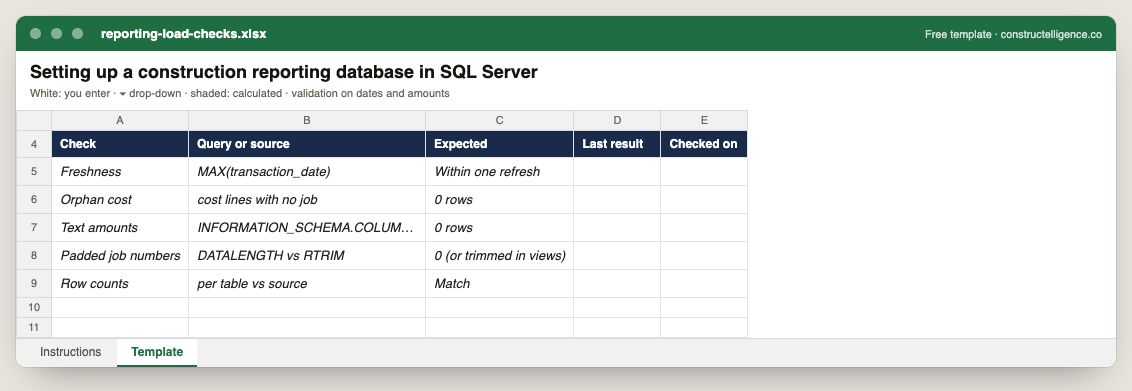
Each reporting-database check with its query, the expected result, the last result and when it was checked.
5 columns: 5 you fill in. In the Excel version, 1 column reject entries of the wrong type (a date column only takes dates, an amount column only numbers), the header row stays frozen with filters on it, and the workbook opens on an Instructions sheet that lists every column below.
Every column, and how it is captured
| Column | Type | What goes in it |
|---|---|---|
| Check | Text | Free text. |
| Query or source | Text | Free text. |
| Expected | Text | Free text. |
| Last result | Text | Free text. |
| Checked on | Date | Enter the date. |
See it on real-looking numbers
Constructelligence is a construction intelligence platform: it reads your ERP, project and field systems read-only and does this arithmetic every week, for every job. The demo runs it on a sample eight-job portfolio.
Try the demoJoin the private betaFrequently asked questions
Should I run reports directly against my construction ERP?
It is better not to. A reporting copy in SQL Server or Azure SQL keeps heavy queries away from people posting in the ERP, lets you add indexes and views, and gives every tool the same numbers at the same refresh time.
How do I create a read-only SQL login for reporting?
Create a user in each company database and add it to db_datareader; on Azure SQL a contained user (CREATE USER … WITH PASSWORD) needs no server login. Deny INSERT, UPDATE, DELETE and EXECUTE explicitly, give each tool its own login, and connect with ApplicationIntent=ReadOnly.
How often should the reporting database refresh?
Hourly is enough for most job cost reporting; nightly suits month-end packs. More important than frequency is that a failed or partial load never replaces the last good copy — load into staging and swap it in when complete.
Why do my job numbers not match in Power BI when they match in SQL?
Fixed-width job numbers often carry trailing spaces. SQL Server ignores trailing spaces when comparing with =, but Power BI, Excel and most scripts do not. Trim them in a view (RTRIM) so every tool sees the same key.
Can Power BI connect directly to Sage 300 CRE?
It can, through the Timberline ODBC driver, but every refresh then reads the live company files while people are posting, and each report repeats the same joins. A SQL copy with views in front is faster, safer and gives every tool the same numbers.
Should the reporting database be SQL Server or Azure SQL?
Either works. An on-premises SQL Server sits next to an on-premises ERP and needs the Power BI gateway for scheduled refresh; Azure SQL needs no server to maintain, offers read scale-out for ApplicationIntent=ReadOnly, but does not allow cross-database views, so multi-company reporting needs a different approach.
How do I report across several companies?
Keep one database per company with identical reporting views, then combine them: a UNION ALL view across databases on SQL Server, or an elastic query or a single consolidated database on Azure SQL. Check that every company's view exposes the same columns and types, or one company silently drops out of totals.
What indexes does a construction reporting database need?
Start with one covering index on the job cost ledger keyed on job and transaction date, including amount, cost type and cost code. Most dashboard queries filter by job and date and sum amounts, so that one index serves most of them.
Related guides
More in Data & integrations
- Construction software integration: connecting ERP, project management and field tools
- Procore ERP integration: what syncs with your accounting system, and how
- Autodesk Build cost management: budgets, contracts and the change order chain