- A location someone else can walk to, and a photo.
- A trade AND a named person for every item.
- Trades mark 'Ready for review'; only the verifier closes.
- Punch area by area as trades finish, not all at the end.
What a punch list item needs
- Location precise enough to walk to: floor, room number, gridline or elevation.
- Description of what is wrong and what 'fixed' looks like.
- Photo — saves a site walk to explain it.
- Trade and a named person — 'drywall' is not an owner; the drywall foreman is.
- Due date and priority — life-safety and occupancy items first.
- Verification by someone other than the trade that fixed it.
A filled-in example
Four items from the floor 1 walk at Maple Street Medical Office:
| No. | Location | Trade | Item | Priority | Status |
|---|---|---|---|---|---|
| 1 | Room 112, east wall | Painting | Touch up scuffs at 4 ft height | Low | Closed |
| 2 | Room 118 | Electrical | Missing cover plate at receptacle by door | Medium | Ready for review |
| 3 | Corridor 1B | Doors & hardware | Door 1B-04 does not latch | High | In progress |
| 4 | Restroom 105 | Plumbing | Lavatory P-trap leaking | High | Open |
Item 3 is a fire-rated door: it blocks the occupancy inspection, so it is High whatever its size. Item 2 is 'Ready for review', not 'Closed' — the electrician says it is done; the superintendent has not checked.
Closing it out fast
- Punch as you go. Walk each area when its trades finish, not the whole building at the end.
- One list per trade. Filter by trade and send each its own list — nobody reads a 600-line sheet for their 40 items.
- Status the trade cannot close. Trades set 'Ready for review'; only the verifier sets 'Closed' or 'Rejected'.
- Watch days open. Sort by Days open each week. Anything past two weeks needs a phone call, not another email.
- Tie it to money. Open punch items are a reason to hold retainage — and a reason the owner holds yours.
How to fill it in
- Walk the area and add one row per item, with a location someone else could find and a photo reference.
- Assign each item to a trade and a person, with a due date.
- Trades set Status to 'Ready for review' when done; only the verifier sets 'Closed' (or 'Rejected').
- Filter Overdue and Priority = High each morning; Days open shows what is stuck.
- Send each trade its own filtered list rather than the whole sheet.
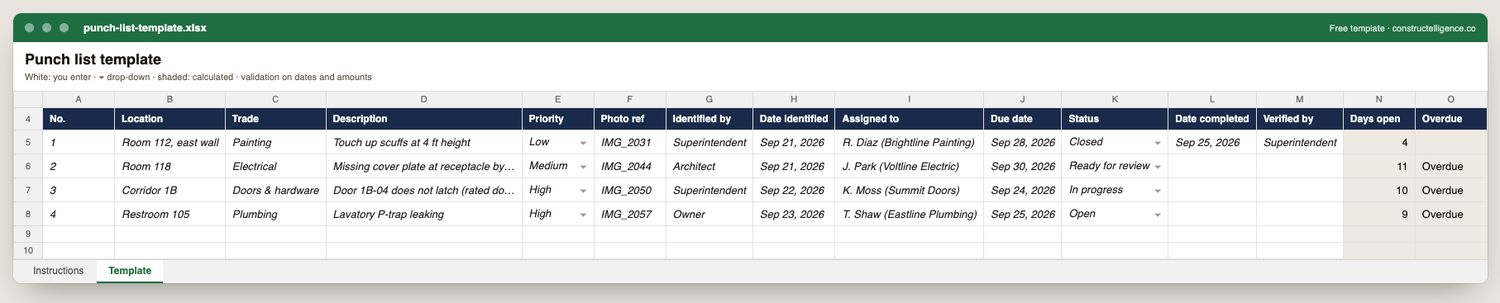
Everything needed to get a punch list closed rather than just written: where the item is, which trade owns it, what is wrong, how urgent it is, the photo, who found it and when, who is fixing it by when, its status, who verified it — with days open and overdue flags calculated.
15 columns: 11 you fill in, 2 picked from drop-down lists, so every row uses the same values and 2 calculated by formula and filled down 200 rows, so nothing is worked out by hand. In the Excel version, 3 columns reject entries of the wrong type (a date column only takes dates, an amount column only numbers), the header row stays frozen with filters on it, and the workbook opens on an Instructions sheet that lists every column below.
Every column, and how it is captured
| Column | Type | What goes in it |
|---|---|---|
| No. | Text | Item number, so it can be referred to on site and in emails. |
| Location | Text | Floor, room or gridline — specific enough to walk to. |
| Trade | Text | The trade responsible for the fix. |
| Description | Text | What is wrong and what 'fixed' looks like. |
| Priority | Drop-down | Options: High / Medium / Low. |
| Photo ref | Text | Photo file name or link. |
| Identified by | Text | Who found it (architect, owner, superintendent). |
| Date identified | Date | Enter the date. |
| Assigned to | Text | The person at the trade who will fix it. |
| Due date | Date | Enter the date. |
| Status | Drop-down | Where the item stands; pick from the list so the log can be filtered and counted. Options: Open / In progress / Ready for review / Closed / Rejected. |
| Date completed | Date | Enter the date. |
| Verified by | Text | Who checked it and closed it — not the trade that fixed it. |
| Days open | Calculated | Calculated — days since the item was raised, until it is completed or answered; counts up daily while open (= IF([Date identified]=blank, blank, IF([Date completed]=blank, TODAY(), [Date completed]) − [Date identified])) |
| Overdue | Calculated | Calculated — shows 'Overdue' when the due date has passed and the item is still open (= IF(AND([Date completed]=blank, [Due date] ≠ blank, TODAY()>[Due date]), "Overdue", blank)) |
See it on real-looking numbers
Constructelligence is a construction intelligence platform: it reads your ERP, project and field systems read-only and does this arithmetic every week, for every job. The demo runs it on a sample eight-job portfolio.
Try the demoJoin the private betaFrequently asked questions
What is a punch list in construction?
A list of work that is incomplete, damaged or not to the contract standard near the end of a project or phase. Each item is assigned to the responsible trade and has to be completed and verified before final completion and payment.
Who creates the punch list?
Usually the general contractor's superintendent walks the work first, then the architect and owner walk it and add their items. Subcontractors often keep their own lists for the GC's items.
What should be on a punch list template?
Item number, location, trade, description, priority, photo, who found it and when, who it is assigned to, the due date, status, completion date and who verified it — with days open calculated.
How does the punch list relate to retainage?
Final payment and retainage are often released only when punch list items are complete. Unfinished items are a common reason owners hold retainage, and GCs hold subcontractors' retainage for the same reason.
Related guides
More in Templates & forms
- Free construction templates for Excel and Google Sheets
- Construction scope of work template: what to include, a filled-in example and a free download
- Construction schedule template: activities, workday finish dates and a free Excel download
- Construction estimate template: labor, material, equipment and subs by cost code — free Excel
- Construction change order form: what it must show, a priced example and a free template
- Construction daily report template: what to record every day, an example and a free download
- Construction budget template: budget, committed, actual and forecast by cost code — free Excel
- Construction bid template: base bid, alternates, unit prices and exclusions — free Excel
- RFI template: how to write a construction RFI, an example and a free form and log
- Construction proposal template: scope, price, exclusions and payment schedule — free download
- Construction timesheet template: hours by job and cost code, overtime and labor cost — free Excel
- Submittal log template: track every submittal from spec to approval — free Excel