- Build the log from the specs, section by section.
- Work back from the required-on-site date.
- Allow review time and at least one revision.
- Watch the at-risk flag weekly.
What a submittal log tracks
- Every submittal the specs require, by spec section — built from the specifications, not from memory.
- Who prepares it — the subcontractor or supplier.
- When it is needed: required-on-site date, lead time, and the submit-by date worked back from them.
- Review: dates submitted and returned, the action, the revision number, days in review.
A filled-in example
Three submittals on Maple Street Medical Office:
| Spec | Item | Required on site | Lead time | Submit by | Status |
|---|---|---|---|---|---|
| 08 71 00 | Door hardware | Jan 11 | 42 days | Nov 16 | Revise & resubmit |
| 09 21 16 | Gypsum board product data | Nov 30 | 10 days | Nov 6 | Approved |
| 22 42 00 | Plumbing fixtures | Dec 14 | 35 days | Oct 26 | In review |
Submit by = required on site − lead time − 14 days of review. Door hardware went back for revision: every week it stays there is a week off its 42-day lead time.
How to fill it in
- Build the log from the specifications: one row per submittal each section requires.
- Enter the date each item is required on site and its lead time; 'Submit by' works back from them, allowing 14 days for review.
- Record dates submitted and returned, the review action and the revision.
- Filter At risk each week — anything not approved with too little time left for review and delivery.
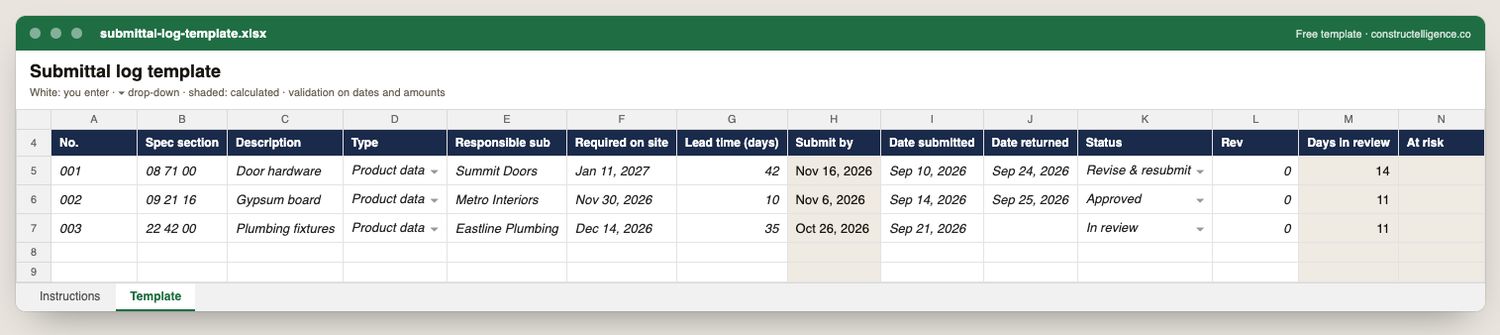
Everything needed to get submittals approved before the material is needed on site: the spec section and type, the responsible subcontractor, the date it is required by the schedule, when it was submitted and returned, the review action and revision, with days in review and an at-risk flag calculated.
14 columns: 9 you fill in, 2 picked from drop-down lists, so every row uses the same values and 3 calculated by formula and filled down 200 rows, so nothing is worked out by hand. In the Excel version, 4 columns reject entries of the wrong type (a date column only takes dates, an amount column only numbers), the header row stays frozen with filters on it, and the workbook opens on an Instructions sheet that lists every column below.
Every column, and how it is captured
| Column | Type | What goes in it |
|---|---|---|
| No. | Text | Free text. |
| Spec section | Text | Specification section that requires the submittal (e.g. 08 71 00). |
| Description | Text | What the line is, in words the other party will recognise. |
| Type | Drop-down | Options: Shop drawings / Product data / Samples / Mock-up / Calculations / Certificates / O&M manual. |
| Responsible sub | Text | Subcontractor or supplier that prepares it. |
| Required on site | Text | Date the material has to be on site, from the schedule. |
| Lead time (days) | Number | Days from approval to delivery. |
| Submit by | Calculated | Calculated: IF([Required on site]=blank, blank, [Required on site] − [Lead time (days)] − 14) |
| Date submitted | Date | Enter the date. |
| Date returned | Date | Enter the date. |
| Status | Drop-down | Where the item stands; pick from the list so the log can be filtered and counted. Options: Not submitted / In review / Approved / Approved as noted / Revise & resubmit / Rejected. |
| Rev | Number | Revision number — 0 for the first submission. |
| Days in review | Calculated | Calculated: IF([Date submitted]=blank, blank, IF([Date returned]=blank, TODAY(), [Date returned]) − [Date submitted]) |
| At risk | Calculated | Calculated: IF(AND([Status] ≠ "Approved", [Status] ≠ "Approved as noted", [Submit by] ≠ blank, TODAY()>[Submit by]), "At risk", blank) |
See it on real-looking numbers
Constructelligence is a construction intelligence platform: it reads your ERP, project and field systems read-only and does this arithmetic every week, for every job. The demo runs it on a sample eight-job portfolio.
Try the demoJoin the private betaFrequently asked questions
What is a submittal log?
A list of every submittal a project's specifications require — shop drawings, product data, samples — with who prepares each, when it is due, when it was submitted and returned, and the review result.
Who maintains the submittal log?
Usually the general contractor's project engineer or project manager, with subcontractors responsible for preparing their own submittals on time.
How long does submittal review take?
The contract usually sets it — often 10 to 14 working days per review — and a resubmittal starts the clock again. Allow for at least one revision on complex items.
What do submittal review actions mean?
Approved means proceed. Approved as noted means proceed with the reviewer's corrections. Revise and resubmit means correct and submit again before ordering. Rejected means the product or approach is not acceptable.
Related guides
More in Templates & forms
- Free construction templates for Excel and Google Sheets
- Construction scope of work template: what to include, a filled-in example and a free download
- Punch list template: the fields that get items closed, an example and a free Excel download
- Construction estimate template: labor, material, equipment and subs by cost code — free Excel
- Construction change order form: what it must show, a priced example and a free template
- Construction daily report template: what to record every day, an example and a free download
- Construction budget template: budget, committed, actual and forecast by cost code — free Excel
- Construction bid template: base bid, alternates, unit prices and exclusions — free Excel
- Construction proposal template: scope, price, exclusions and payment schedule — free download
- Construction timesheet template: hours by job and cost code, overtime and labor cost — free Excel